
Getting started
Customize the chat widget
Pick the widget's style, then set its colours, bubble, assistant name, Home blocks and behaviour, with a live preview before anything changes on your store.
Updated
Everything about how the chat looks and behaves on your store is on the Storefront widget page. A Live preview beside the settings shows each change before shoppers see it, on desktop or on a phone.
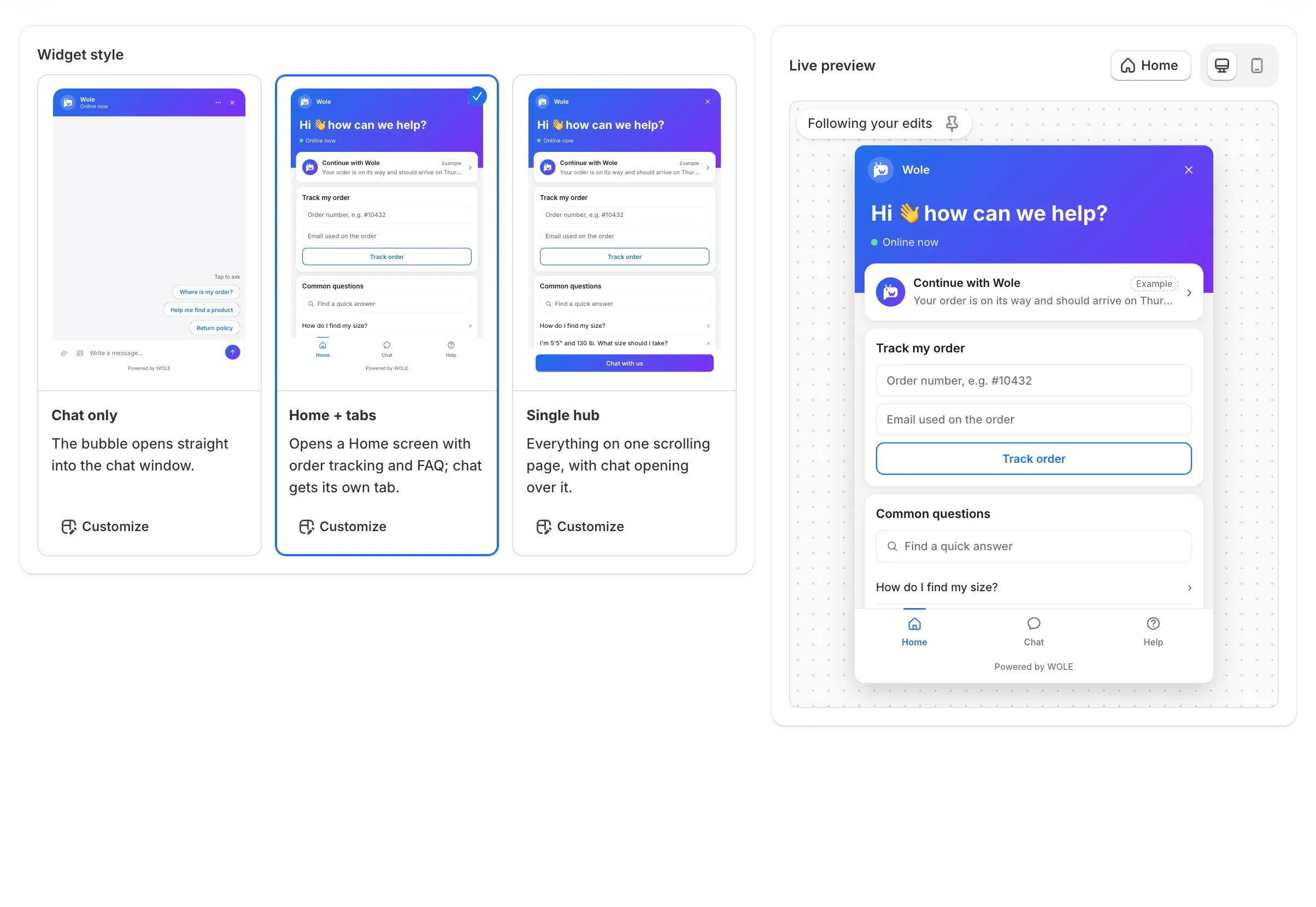
Choose a style
Widget style offers three:
| Style | What shoppers get |
|---|---|
| Chat only | The bubble opens straight into the chat window. |
| Home + tabs | A Home screen with order tracking and your FAQ; the chat has its own tab. |
| Single hub | Everything on one scrolling page, with the chat opening over it. |
Click a card to pick it, then click Save in the bar at the top of the page. Customize on a card opens that style’s settings without switching to it: the header says Live for the style shoppers see and Not live for the others.
Most settings are Shared across all styles. The Home and Hub layouts have one more tab for their blocks.
Appearance
- Visibility. Show the widget on my online store hides or shows the whole widget. Show “powered by WOLE” can be switched off on the Growth plan and above.
- Assistant identity. The Assistant name shoppers see, its Assistant avatar (your own photo, your store logo or a built-in avatar) and the Greeting.
- Quick replies. Up to eight buttons under the greeting, for the questions shoppers ask first.
- Look and feel. The Bubble icon and Bubble shape (a pill shape can carry a short label), corner radius, text size and Font: the system font, your store theme’s font, or one of the web fonts.
- Colors. A Light, Dark or Auto theme (Auto follows each shopper’s device), an accent in one colour or a Gradient, and your own colours for each part, from the header to the message bubbles. WOLE warns you when a pair of colours is hard to read.
- Cards. How product, discount and order cards look in the chat.
- Teaser. A short line beside or above the bubble, like “Need help? Ask us”, that shoppers can dismiss.
- Message box. Whether shoppers can attach files, and which kinds.
Position
- Corner: bottom right or bottom left, with side and bottom offsets.
- Mobile bottom offset lifts the bubble clear of a sticky cart bar on phones.
- Hide on mobile below 480px keeps the bubble off small phones.
- Hide on these URLs keeps it off pages you list, separated by commas.
*matches anything, so/pages/wholesale*hides every wholesale page. The widget never loads on Shopify’s checkout.
Behavior
- Auto-open. Open the chat by itself after some time on a page. On Starter and above it can also open on scroll depth or when a shopper is about to leave. Choose the kinds of page it applies to. It opens once per visit, never on phones, and not for a shopper who already has a chat open.
- Sound & motion. A sound and an animation when a message arrives, an unread badge on the bubble, and typing dots before a reply.
- Ratings. Ask shoppers to rate the chat once it has been quiet for a few minutes. Ratings show in your Inbox and on the Dashboard.
- Contact details. Ask for the shopper’s email when the chat goes to your team (the default), before the chat starts, or never, and their name too if you like.
- Teammate replies. Show each teammate’s name and photo on their messages.
Home and Hub blocks
With Home + tabs or Single hub, the Home (or Hub) tab of the Customize screen sets what the first screen shows. Use Add block to add one, drag blocks to reorder them, and switch each one on or off:
- Greeting, always first.
- Continue conversation, for a shopper coming back to a chat.
- Track order, a form to look up an order without typing a message. It’s hidden while Orders is off in AI Training.
- Common questions, answers from your FAQ, by topic or picked one by one.
- Contact channels, other ways to reach you, like email.
- Link, to any page.
- Promotion, a banner for an offer (Starter and above).
- Chat button, at the foot of the Single hub.
Save
Changes wait in the bar at the top of the page until you click Save, or Discard to drop them.
Not seeing the widget at all? See The chat bubble doesn’t show on my store.