
Inbox & team
Answer chats in the Inbox
How chats move between WOLE and your team in the Inbox: statuses, taking over and handing back, notes, tags, quick replies and each shopper's details.
Updated
Every chat lands in the Inbox, whether WOLE is answering it or your team is. You can read along while the AI answers, take over at any point, and hand the chat back when you’re done.
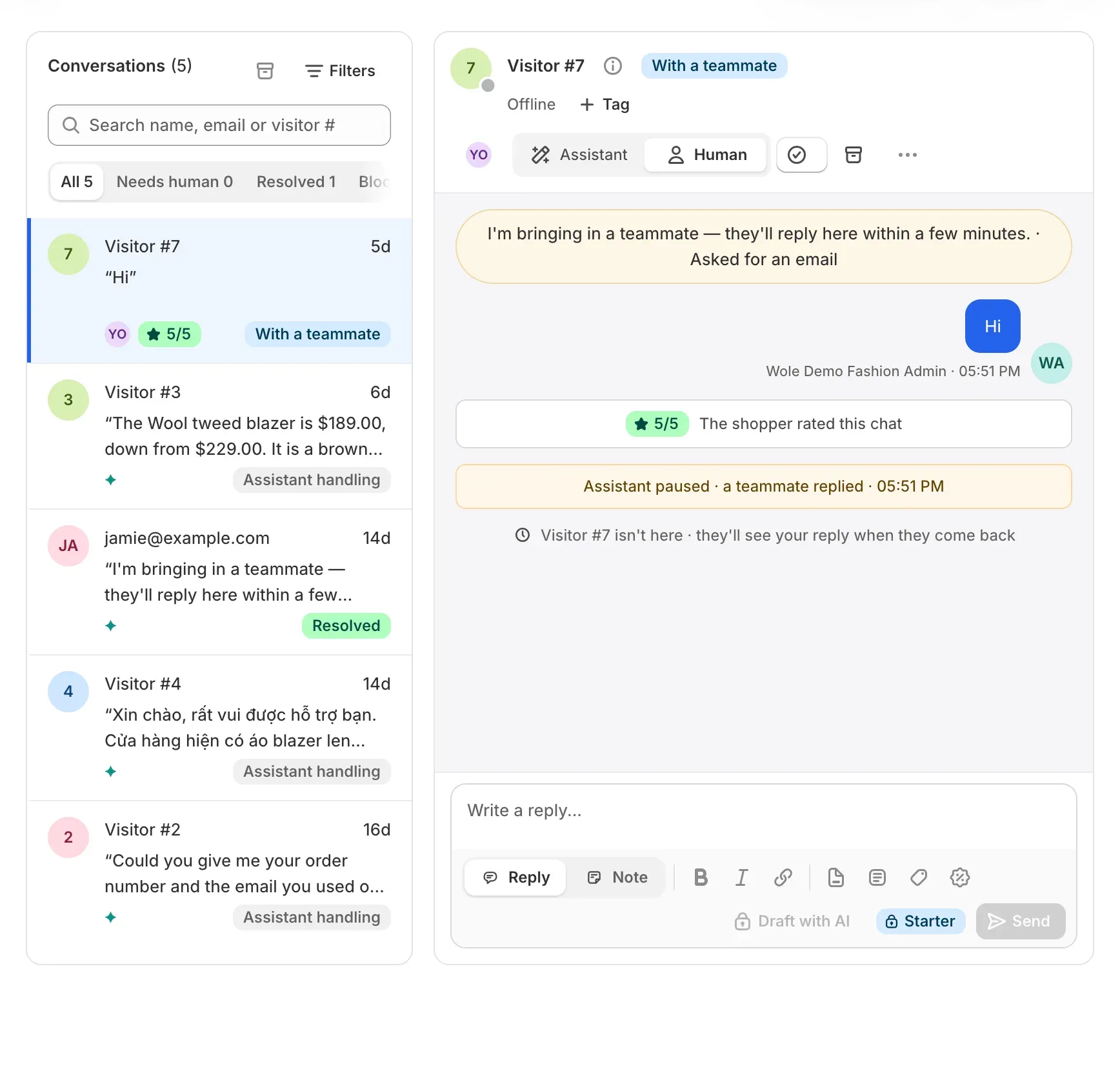
Who has the chat
Each conversation shows its status:
| Status | What it means |
|---|---|
| Assistant handling | WOLE is answering. |
| Needs a human | WOLE handed it over and nobody has picked it up yet. |
| With a teammate | Someone on your team has it. WOLE stays quiet. |
| Resolved | Closed. WOLE answers the shopper’s next message. |
| Blocked | You blocked the shopper. |
The chips above the list filter by status; Needs human shows only the chats waiting on a person. Filters narrows the list by channel, assignee, unread or unassigned chats, and tags. The search box finds a name, an email or a visitor number.
Take over, and hand back
The switch at the top of a conversation says who holds it: Assistant or Human.
- Click Human to take the chat over. It’s assigned to you and WOLE stops answering.
- Replying does the same: as soon as a teammate replies, the assistant pauses and the chat moves to With a teammate.
- Click Assistant to hand it back. The chat is unassigned and WOLE answers the shopper’s next message.
When WOLE stops answering, the conversation says why, for example Assistant paused because the shopper asked for a person or a teammate replied.
To give a chat to someone else, use Assign and pick a teammate. Teammates appear in the list once they have opened WOLE.
Close a chat
- Resolve closes it and unassigns it. If the shopper writes again, WOLE answers. To pick a resolved chat back up yourself, click Human.
- Archive moves it out of the list until the shopper writes again.
- More actions has Mark as unread, Copy link, Block shopper and Delete conversation.
Notes, quick replies and tags
- Switch the reply box from Reply to Note to write something only your team sees. Type
@and a name to mention a teammate. - Insert a quick reply drops in a reply you’ve saved. Write and edit them in Settings → Quick replies.
- Tag labels a conversation, for example “Wholesale” or “Damaged”. Tags can also trigger handoff rules.
- Draft with AI (Starter and above) writes a reply for you to check and send.
Who you’re talking to
Open the shopper’s details from the top of the conversation to see:
- their Shopify orders and what they’ve spent
- when they were first and last seen, where they are and their local time, and their device
- their recent orders, with View order and Track order
- their earlier conversations, and View customer in Admin
If the shopper rated the chat, the rating shows in the conversation.
When the shopper has left
If the shopper has gone, the conversation says so. If they left their email, your reply is emailed to them too, so the answer still reaches them. You can change this under Settings → Emails.
To hear about chats that need you, set up notifications.