
Inbox & team
Add teammates and choose what they can do
Give your Shopify staff a seat in WOLE, hand them chats, and choose what each one can change, from the Inbox to AI Training, the widget and billing.
Updated
Teammates answer chats with you. Each one signs in with their own Shopify staff account, so WOLE knows who wrote what and who has which chat.
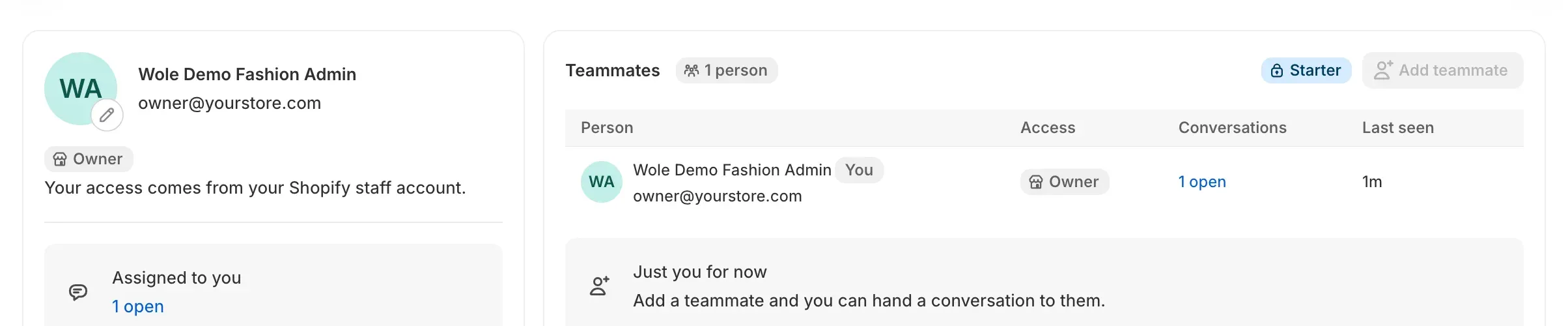
Add a teammate
- In Shopify, give the person a staff account on your store. Open staff settings on the add form takes you to Shopify’s Users and permissions.
- In WOLE, open Teammates and click Add teammate.
- Enter their name and the email they sign in to Shopify with.
They show as Waiting for first visit until they open WOLE for the first time. You can assign them chats before then.
Seats
Your plan sets how many teammates you can have besides the store owner: just you on Free, 2 on Starter, 5 on Growth, 10 on Pro, and no limit on Scale. A teammate who hasn’t opened WOLE yet still takes a seat. Collaborator accounts don’t take one.
If you move to a smaller plan, teammates who are already in keep their access.
Choose what each one can do
Click a teammate to set their access. A role fills in the switches for you, and you can change any of them after:
- Agent works the Inbox.
- Manager also runs the assistant, handoff, tags and the widget.
- Admin can do everything, including people, billing and channels.
The switches come in four groups:
| Group | What it covers |
|---|---|
| Inbox | Assign to others, Block shoppers, Delete teammates’ notes, Manage quick replies, Delete conversations |
| Teammates | Add teammates, Change photos |
| AI & storefront | Manage AI knowledge, Manage voice and languages, Manage handoff, Manage tags, Manage the widget |
| Admin | Remove teammates, Manage access, Manage billing, Manage channels |
Changes save as you make them. You can only give access you have yourself, and the store owner always has everything.
A teammate without a permission can still open those screens and read them. A note at the top tells them which permission to ask the store owner for.
Away
A teammate who isn’t working can set themselves to Away under Settings → General. Rules stop sending chats to them, and handoffs don’t make a sound or a phone alert for them. Chats assigned to them and mentions in notes still reach them.
Remove a teammate
Removing someone asks whether to hand their open chats to another teammate or leave them unassigned. Removing them from WOLE doesn’t remove their Shopify staff account. To keep them out of WOLE for good, remove their access in Shopify too.