
Getting started
Teach the AI about your store
What WOLE reads from Shopify on its own, how to sync your policies and pages, add links and files, and write the FAQ answers that cover everything else.
Updated
WOLE answers from what your store gives it, and nothing else. When nothing it has covers a question, it says so and offers a teammate rather than guessing.
All of this lives in AI Training, on three tabs:
- Knowledge: where it reads from.
- FAQ: answers you write.
- Voice: how it sounds.
What it already knows
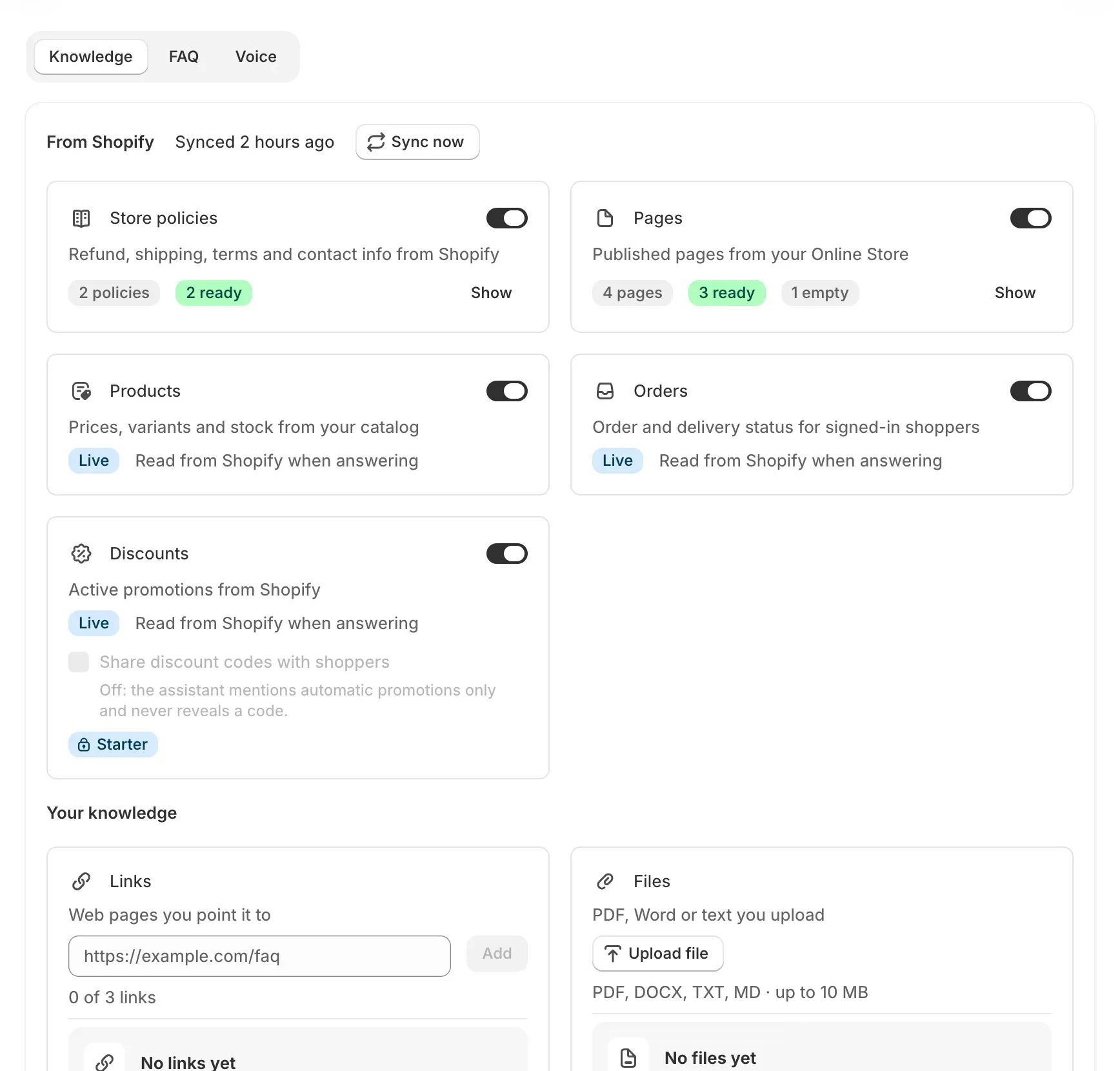
On the Knowledge tab, three sources are marked Live. WOLE reads them from Shopify each time it answers, so there is nothing to sync.
| Source | What WOLE reads |
|---|---|
| Products | Prices, variants and stock from your catalog |
| Orders | Order and delivery status. A signed-in shopper’s own orders; a guest gives the order number and the email they ordered with. |
| Discounts | The promotions running in Shopify |
Every source has a switch. Turn one off and WOLE stops using it.
Product answers are only as good as your product pages. A clear title, a description with the details shoppers ask about (sizes, materials, dimensions) and tags with the words they use all help. A sweater tagged “jumper” turns up when a shopper asks for a jumper. There’s more in Products, orders and discounts in chat.
Sync your policies and pages
Under From Shopify are your Store policies (refund, shipping, terms and contact) and your Pages (the published pages of your Online Store, like a size guide or a delivery page).
- The first time, click Grant access so WOLE can read your policies and pages.
- Click Sync now. Each source then shows Ready, Syncing, Nothing to read or Failed, with when it last synced.
WOLE syncs them again every night. After you change a policy or a page, click Sync now to use the change straight away. If Store policies says Not set up, write your policies in Shopify first (Settings → Policies).
Add links and files
Under Your knowledge you can add what isn’t in Shopify:
- Links are web pages WOLE reads, like a help centre hosted elsewhere or a care guide. Enter the full address, for example
https://example.com/faq. - Files can be PDF, Word (DOCX), TXT or Markdown, up to 10 MB each: a size chart, a product manual, a warranty sheet.
Each card shows how many you’ve added and how many your plan allows. To see exactly what WOLE took from a source, choose View text from its menu. WOLE reads the first 200,000 characters of a source, and marks a longer one Truncated. Split it into smaller files if the rest matters.
Write FAQ answers
Products and policies cover a lot. But the questions you answer by hand every week usually aren’t written anywhere WOLE can read: how a brand’s sizing runs, whether you ship to Norway, what to do about a damaged parcel. That’s what the FAQ tab is for.
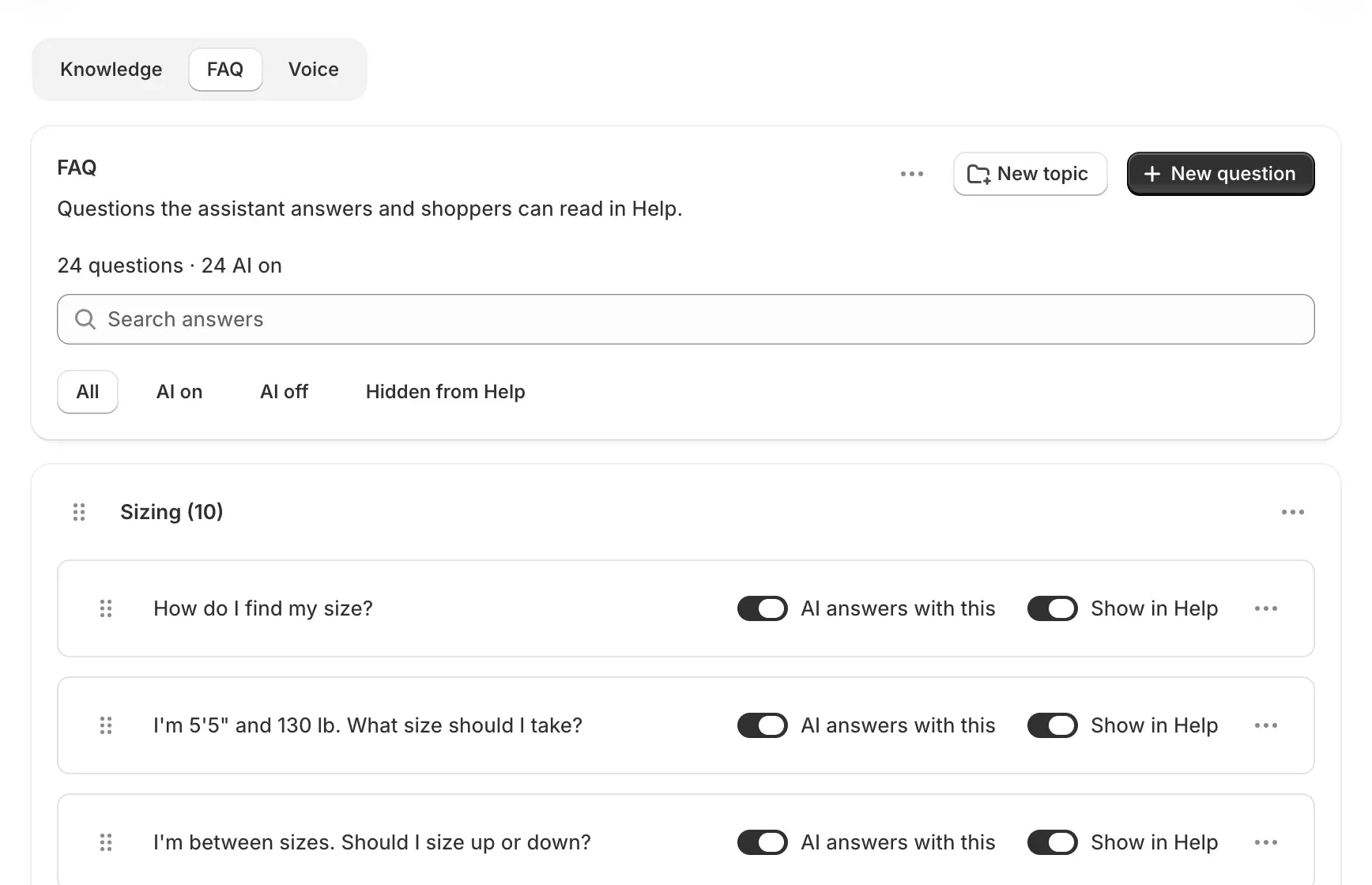
A new store finds a few starter answers there, written to be true of any store and switched on from the start. Read them, then edit each one to match your store, or delete it.
To add an answer:
- Click New question.
- Write the question the way a shopper would ask it. Then write the answer, starting with the answer itself.
- Choose a topic, like Shipping or Returns, or create one. Topics group answers in the list and in the widget’s Help. You can have up to 20.
- Check the two switches. AI answers with this off keeps the answer out of every reply. Show in Help lets shoppers read it in the widget.
Drag answers to reorder them inside a topic. That’s the order shoppers see in Help. A saved answer reaches the assistant straight away.
Import a spreadsheet
If your FAQ is already in a spreadsheet, open Import and export and choose Import. The file must be a CSV with a question column and an answer column. A topic column is used too if the file has one. In Excel, first save the file as CSV UTF-8 (Comma delimited).
WOLE shows what it will import before it changes anything. Then choose one:
- Add to existing adds the file’s questions at the end.
- Replace everything deletes every question you have first. Topics are kept.
Imported answers can take a few minutes to reach the assistant. Export gives you the same kind of file back, which is handy for editing a lot of answers at once.
Set its voice
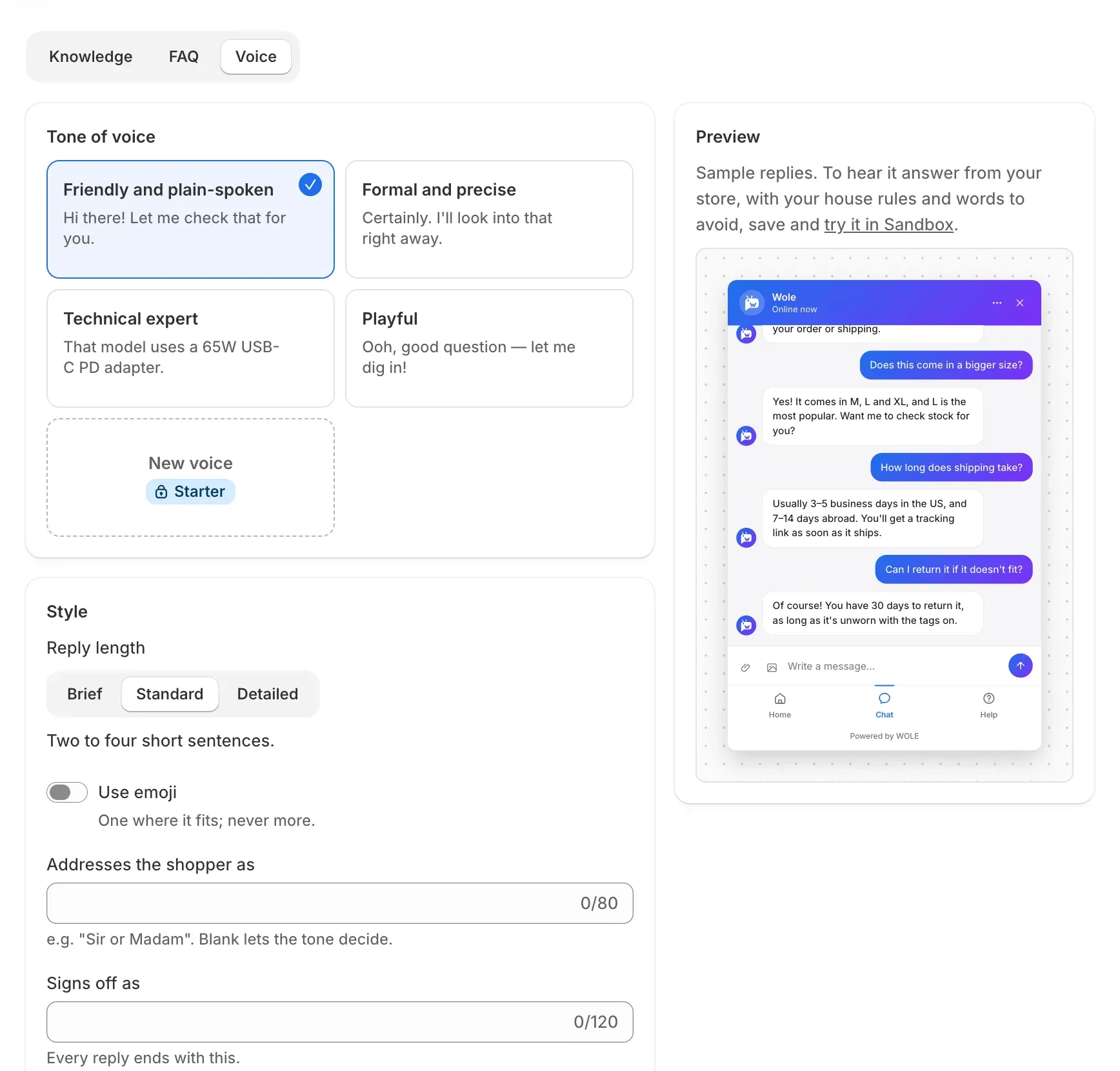
The Voice tab decides how replies sound:
- the tone
- the reply length (Brief, Standard or Detailed)
- whether it uses emoji
- how it addresses shoppers and signs off
- words to avoid
The preview beside the settings shows sample replies in the voice you pick.
House rules are followed in every reply, and WOLE can answer from them too. Use them for short rules that apply everywhere, such as “We don’t ship to PO boxes” or “Engraved items can’t be returned”.
What to teach first
Look through your last few weeks of email and chats, and write answers for the ten questions that come up most. That covers far more of what shoppers ask than a long list of rare ones. For how to word them, see How to write FAQ answers an AI can use.
Then check the result: Test the AI before shoppers see it.