
Getting started
Install WOLE and turn on the chat
Add WOLE to your Shopify store, then switch on its app embed so the chat bubble shows on your storefront. About five minutes, with no theme code to edit.
Updated
WOLE lives in two places. The app sits in your Shopify admin: that’s where you teach the AI and answer chats. The chat widget sits on your storefront: that’s where shoppers talk to it.
Installing adds the app. Shopify keeps the widget switched off until you turn it on in your theme, so there are two short steps.
1. Install the app
- Open WOLE on the Shopify App Store and click Install.
- If you have more than one store, pick the one to add it to.
- Review the permissions WOLE asks for and confirm.
WOLE opens inside your Shopify admin on its Dashboard. You can start on the Free plan and change plans whenever you like under Plans & billing.
2. Turn on the chat widget
Shopify switches off every app embed when an app is installed, and only you can switch one on. Until you do, shoppers can’t see WOLE.
- In WOLE, open Storefront widget and click Open theme editor. The Dashboard’s setup guide has the same button under Turn on the storefront widget.
- Shopify’s theme editor opens on App embeds, with WOLE chat widget already switched on. Click Save.
- Visit your store. The chat bubble shows in the corner of the page.
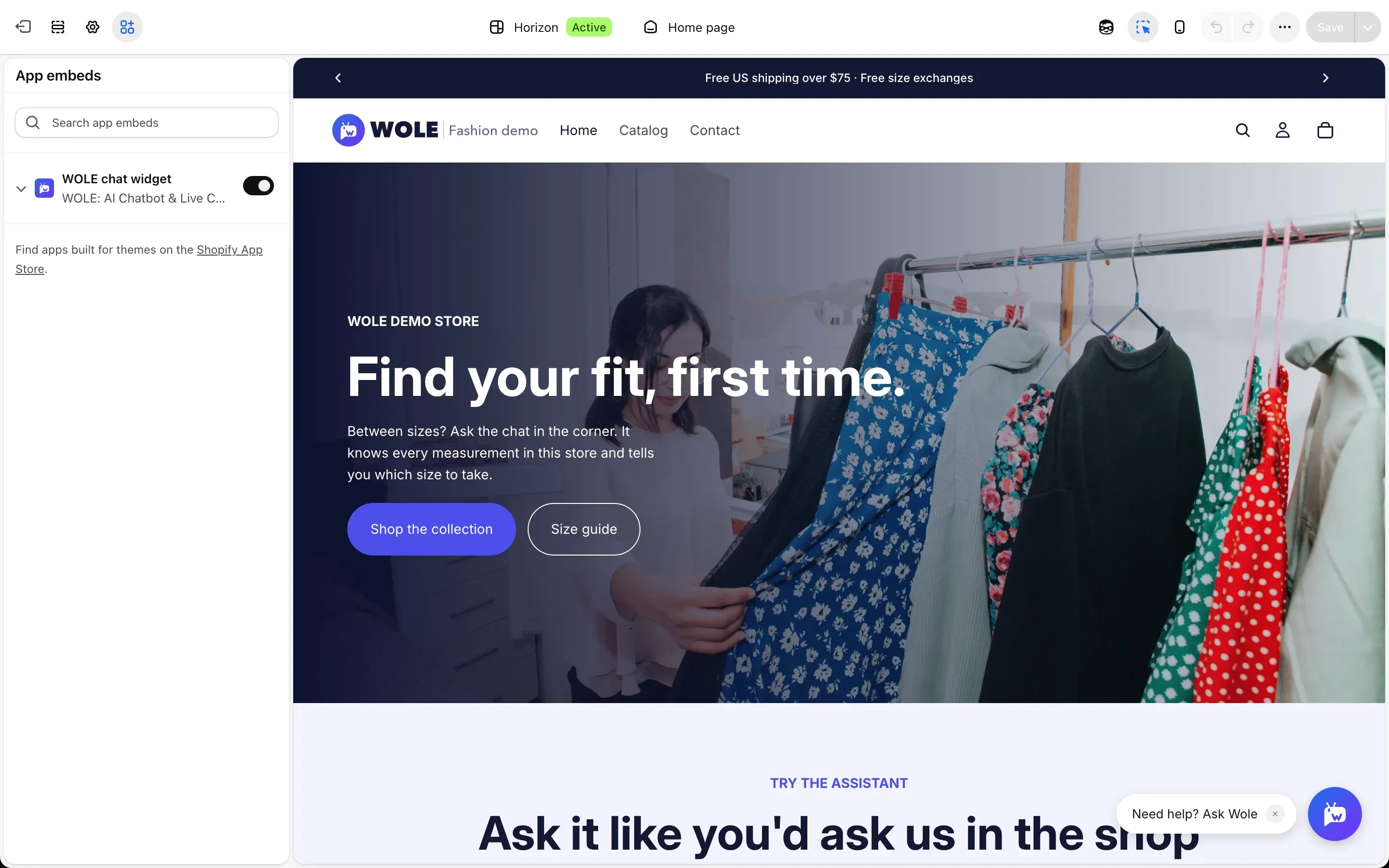
Is your store still behind a password? Enter the storefront password first. The bubble shows on the pages behind it.
Check that it’s on
The Dashboard has a Storefront widget card. On means the app embed is on in your live theme. The setup step ticks itself once the embed is on, or once a shopper has loaded the widget.

If you change themes
The app embed is a setting of each theme. A theme you add later starts with WOLE switched off. After you publish a new theme, open Storefront widget again and repeat step 2.
3. Work through the setup guide
The Dashboard’s Finish setting up WOLE guide lists three steps and ticks them off as you go:
- Teach WOLE about your store. Sync your policies and pages, or write answers, in AI Training. The next guide covers it: Teach the AI about your store.
- Turn on the storefront widget. That’s what you just did.
- Choose who hears about handoffs. Pick who gets told when WOLE hands a chat to your team: Choose who gets notified, and how.
Storefront widget is also where you choose the widget’s style, colours and position: Customize the chat widget.
Before shoppers start writing, ask WOLE their questions yourself: Test the AI before shoppers see it.